
Create an Import Definition
An Import Definition contains all the configuration options needed to control the content, scheduling, structure, and origin of an import file.
The platform allows you to either create a new Import Definition from scratch, or to copy an existing Import Definition to use as the basis for a new Import Definition.
Create an Import Definition
To create a
-
Select Admin from the top navigation bar, then select Integrations > Imports from the side navigation menu. The Imports screen is displayed.
-
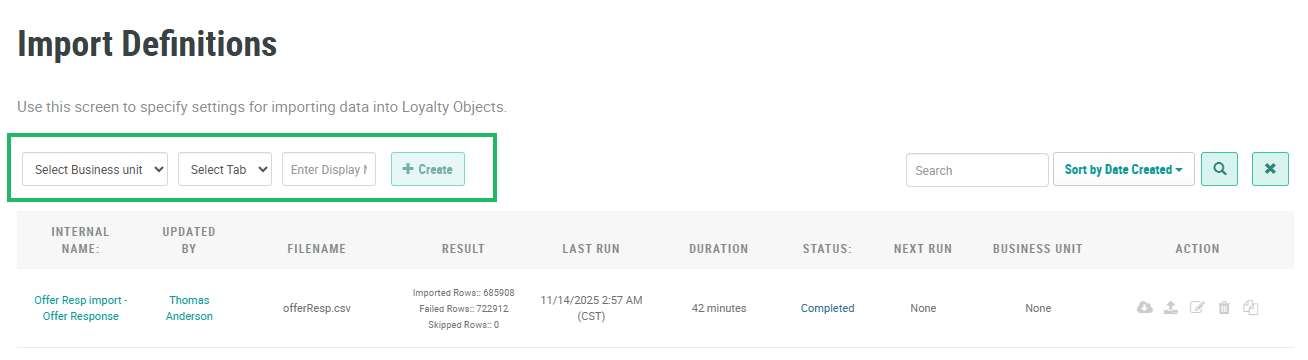
Optionally, if your account has been configured with Business Units, select the desired Business Unit from the Business Unit drop-down menu.
-
From the Table drop-down menu, select
Note: The selected Table can’t be changed after an Import Definition is created and saved.
-
If you selected the Activity table above, select an Activity Type from the Activity Type drop-down menu.
-
If you selected the Offer Certificate or Offer Response table above, optionally select an Offer from the Offer drop-down menu.
-
In the Display Name field, enter the name of the new Import Definition.
-
Click Create. The Import Definition Details screen is displayed.
Copy an Import Definition
Instead of creating a new Import Definition from scratch, you can copy an existing Import Definition. When you copy an Import Definition, all the properties and configuration settings of the base Import Definition are replicated in the new Import Definition. You can then adjust these properties and settings as needed.
To copy an existing Import Definition:
-
Select Admin from the top navigation bar, then select Integrations > Imports from the side navigation menu. The Imports screen is displayed.
-
Optionally, search for the desired Import Definition (see
-
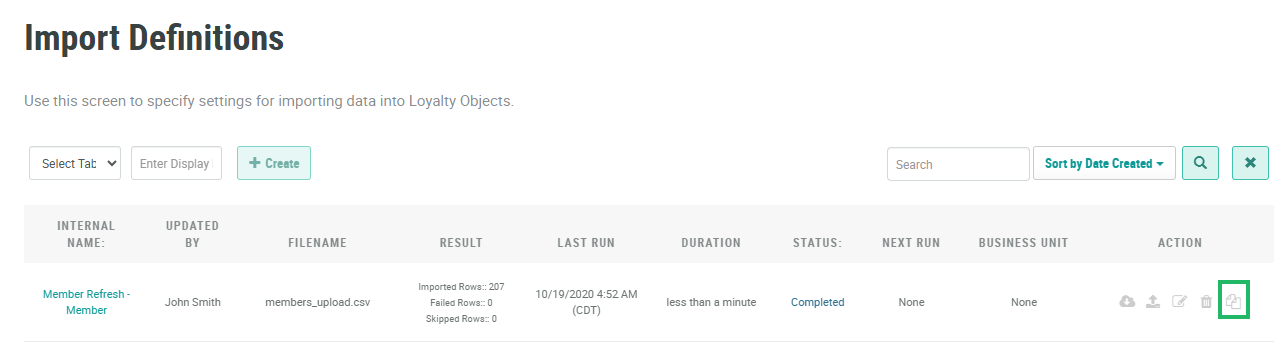
In the Action column next to the desired Import Definition, click the Copy icon.
-
The platform copies the selected Import Definition, and the Import Definition Details screen is displayed. The default name of the new Import Definition is the name of the base Import Definition followed by a counter, such as "(1)" for example. See
Additional Information
For details on how to configure the Import Definition, see one of the following:
